
The biggest confusion for iPhone users in India is simple: there is no APK for iOS. A large share of forum questions are people downloading an APK file on an iPhone and then asking why nothing opens. iPhones cannot run APK files at all. The realistic route on iOS is the browser based web version, saved to the home screen so it behaves like an app. This page covers that flow from real user descriptions, the snags people hit, and the easy fixes. There are no download links here. The web version is described and linked from the home page.
How iPhone Users Actually Set It Up
The people who got a clean app-like icon on their iPhone almost all describe the same Safari trick: open the web version, then use Add to Home Screen. The detail that trips beginners up is that this option lives inside the Share menu, not in the address bar.
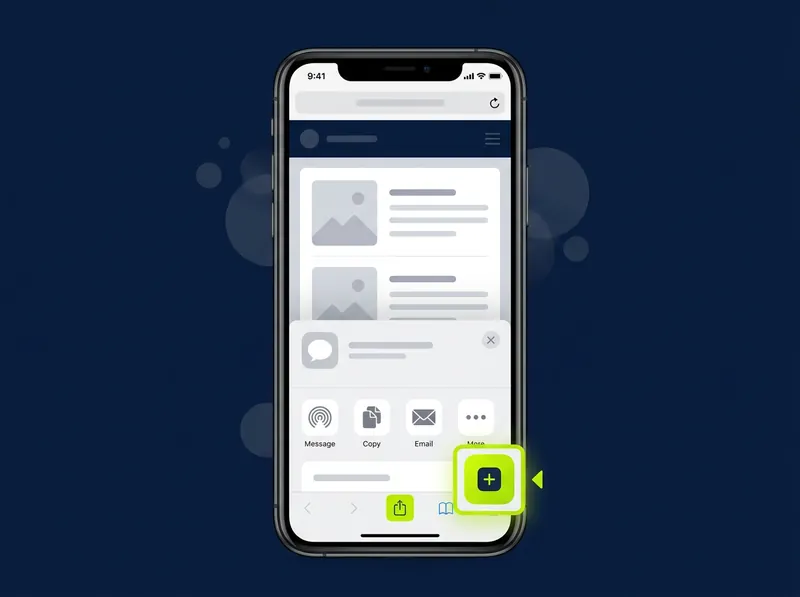
- Open the web version link in Safari. This must be Safari, not Chrome, for the next steps to appear.
- Wait for the mobile layout to fully load and confirm it looks correct.
- Tap the Share button, the square with an upward arrow at the bottom center of Safari.
- Scroll down in the Share sheet and tap "Add to Home Screen".
- Rename the icon if you like, then tap Add in the top right.
- Close Safari and open the new icon from your home screen. It now opens full screen like an app.
Real Problems People Report (and Fixes)
These are the recurring iPhone issues from user threads. Most are about expectations rather than real technical faults.
"I downloaded the APK but it won't open on my iPhone"
By far the most common confusion in India. People follow Android instructions by mistake and try to open an APK on iOS.
What worked for them: Stop looking for an APK. APK is Android only. On iPhone you use the Safari web version and Add to Home Screen instead. Once people understood this, the problem disappeared instantly.
"Add to Home Screen is not in the menu"
Users tap the Share button and do not see the option, or they were using Chrome.
What worked for them: Open the page in Safari specifically. In Chrome on iOS the option is hidden or missing. People also note you sometimes have to scroll down in the Share sheet to reach it.
The saved icon opens inside the browser, not full screen
A few users complain the home screen icon still shows Safari bars.
What worked for them: This usually happens when they saved a plain bookmark instead of using Add to Home Screen, or saved from a different browser. Re-adding it through the Safari Share sheet fixed the full screen behavior.
Page loads slow or shows the desktop layout
Reported on weaker mobile connections common across India, or when the site opened in desktop mode.
What worked for them: Switch to Wi-Fi for the first load, and in Safari use the "aA" menu in the address bar to request the mobile site. After that the layout stayed mobile sized.
Asked to install a "configuration profile"
Some users in India report being pushed by random pages to install a profile or extra tool first. This makes people nervous, correctly.
What worked for them: Do not install configuration profiles or extra apps just to open a web page. The legitimate route needs nothing beyond Safari and Add to Home Screen. Users who skipped these prompts had no issues.
When It Just Works
The smooth iPhone cases are boringly consistent: open the link in Safari, let it load on Wi-Fi, Share, Add to Home Screen, done. People who had zero trouble all share that they did not look for an APK and did not install anything extra. The whole thing takes under a minute once you know where the Share button is.
Where to Get the Web Version
This guide does not host any link to open the service. The iOS web version is described and provided on the home page. After reading the steps here, go back and choose the iOS option there.
Go to the Home Page to Get the AppFor the full app overview and the iOS option, return to the home page. If you also use an Android phone, see the Android setup guide.